VerdelShotfor macOS
1026 × 470

Capture your screen, point out what matters, and share.

Select an area and add arrows, text, or marks right on the screenshot. It's copied automatically so you can paste it wherever you need it.

Download for Mac Free · version 1.0 · macOS 14 or later · Apple Silicon
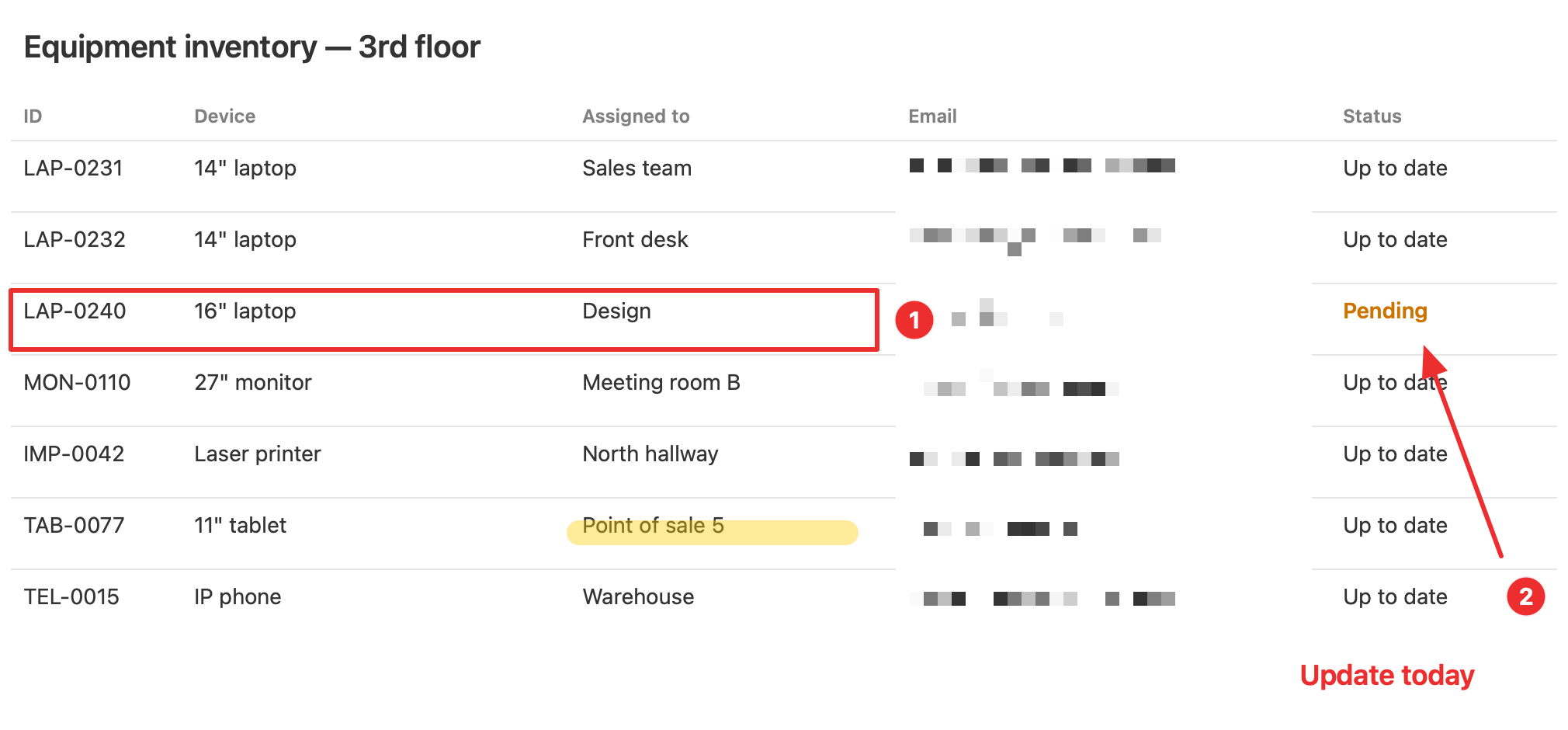
A finished screenshot: a row outlined in red, step numbers, and pixelated emails. Sample data.

It all starts with 2.

Press the shortcut and select what you want to capture. You can annotate right there, without opening another window.

2020 × 940
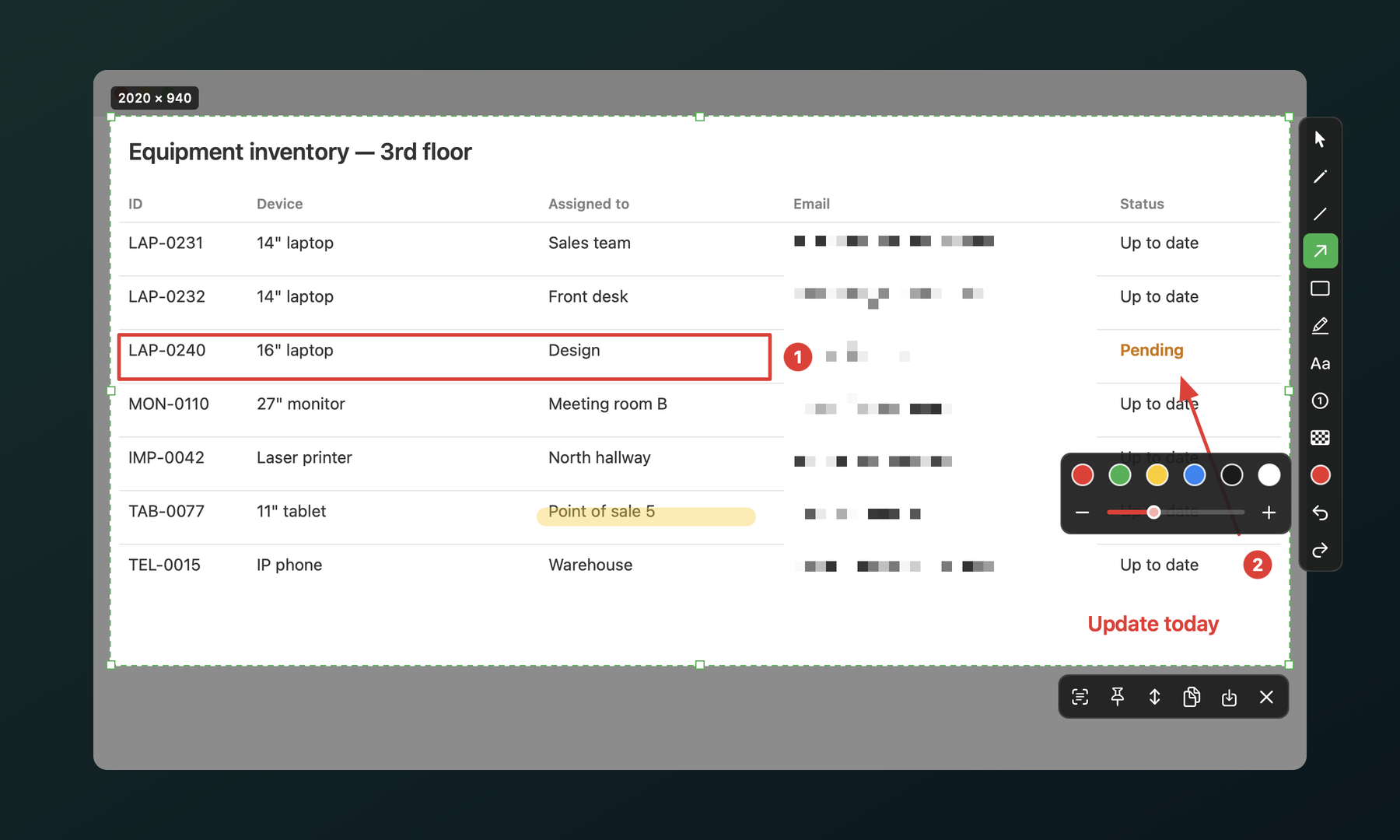
The app in use with the color and opacity panel open. 1 2 3 4 5 6
  1. Capture an area or a window. Drag to select part of the screen, or click a window to capture all of it.
  2. Point out what matters. Add arrows, boxes, text, or draw freehand.
  3. Hide private information. Pixelate names, emails, or anything you'd rather not share.
  4. Fine-tune your annotations. Choose the color, thickness, and opacity.
  5. Keep the tools within reach. The toolbar appears next to your selection and moves out of the way while you draw.
  6. Copy or save your screenshot. Press Enter to copy, ⌘S to save, or Esc to close.

Ready to paste.

The screenshot is copied as soon as you finish selecting and updates with every annotation. Just switch apps and press V.

  • You can also save it automatically. You'll get a PNG copy in the folder you choose.
  • Capture the whole screen with ⌘3. It goes straight to the clipboard.
  • Works offline. Your screenshots stay on your Mac. No account needed.
  • Use any display. Capture from your Mac's screen or an external monitor.
The finished screenshot: the pending row outlined in red, step numbers, and pixelated emails.
Example of a finished screenshot. The data is fictional.

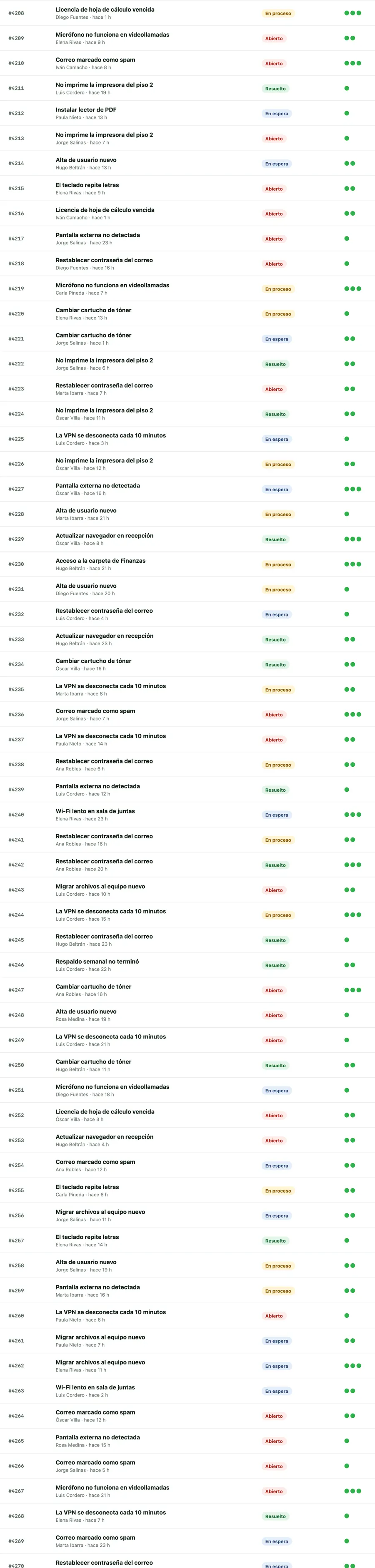
Long pages, in a single capture.

Select the area, press and scroll down the page. VerdelShot stitches everything into a single image, ready to paste.

  • Whole conversations, lists and reports. No more taking ten screenshots and pasting them together.
  • Sticky headers aren't repeated. The top bar appears once at the top and the footer once at the end.
  • You set the pace. Scroll with the wheel or trackpad and finish with Enter. A VerdelShot Pro feature.
1940 × 8122
A long list of fictitious tickets captured whole in a single image.
Example with fictitious data.

Your recent captures, one shortcut away.

Press 4 and the drawer shows what you captured last. Click to copy again, or drag a capture straight into another app.

VerdelShot's recent captures drawer with eight sample captures.
The free version shows your last 3 captures; Pro shows the full history. Everything is stored only on your Mac and you can clear it whenever you want.

Free for everyday use. Pro for doing more.

The free version never expires. If you need the Pro features, you can unlock them with a single payment.

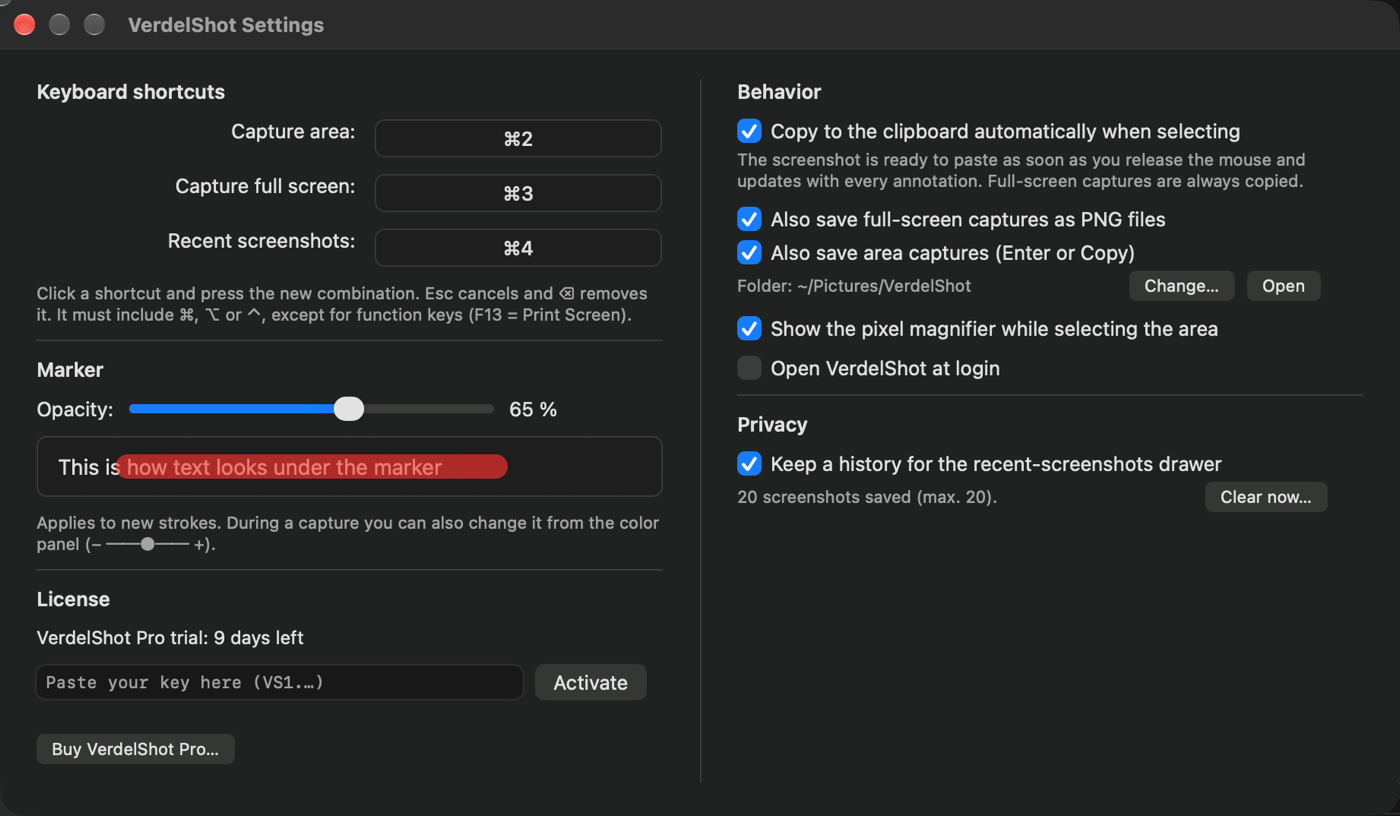
VerdelShot settings window: keyboard shortcuts, marker opacity, license, behavior, and privacy.
macOS 14 or later · Apple Silicon

Download VerdelShot.

Open the file and drag VerdelShot into your Applications folder. The first time you capture, macOS will ask for permission to record the screen.

Download for Mac